![eniture_w89_h34.jpg]](https://support.eniture.com/hs-fs/hubfs/eniture_w89_h34.jpg?height=40&name=eniture_w89_h34.jpg)
Overview
When attempting to print a UPS shipping label in FreightDesk Online, you may encounter the following error:
"Missing or invalid shipping number."
This error may occur even when your UPS account is enabled on the Settings > Connected Carriers page, the Test Connection button returns a successful result, and FreightDesk Online successfully retrieves UPS shipping quotes.
One possible cause is that your UPS account number is not associated with your shipping profile on UPS.com.
Step 1: Verify Your UPS Account Connection in FreightDesk Online
- Log in to FreightDesk Online.
- Navigate to Settings > Connected Carriers.
- Locate your UPS connection and confirm that it is enabled.
- Click Test Connection to verify that the connection is working.
If the connection test succeeds and UPS shipping quotes are available, but you still receive the error when printing a shipping label, proceed to the next step.
Note: A successful connection test does not necessarily confirm that your UPS account is properly configured to generate shipping labels.
Step 2: Verify That Your UPS Account Is Associated With Your UPS Profile
- Log in to your account at UPS.com.
- Navigate to your UPS account and shipping profile settings.
- Verify that the UPS account number used in FreightDesk Online is associated with your UPS shipping profile.
- If the account number is missing, attempt to add it to your profile.
If UPS allows you to add the account successfully, return to FreightDesk Online and attempt to print the shipping label again.
If UPS prevents you from adding the account, proceed to the next step.
Step 3: Resolve the UPS Account Association Error
When attempting to associate your UPS account number with your UPS shipping profile, you may receive the following error, "You are not allowed to add this account type to your profile. Only accounts with scheduled pickups can be added for this user."
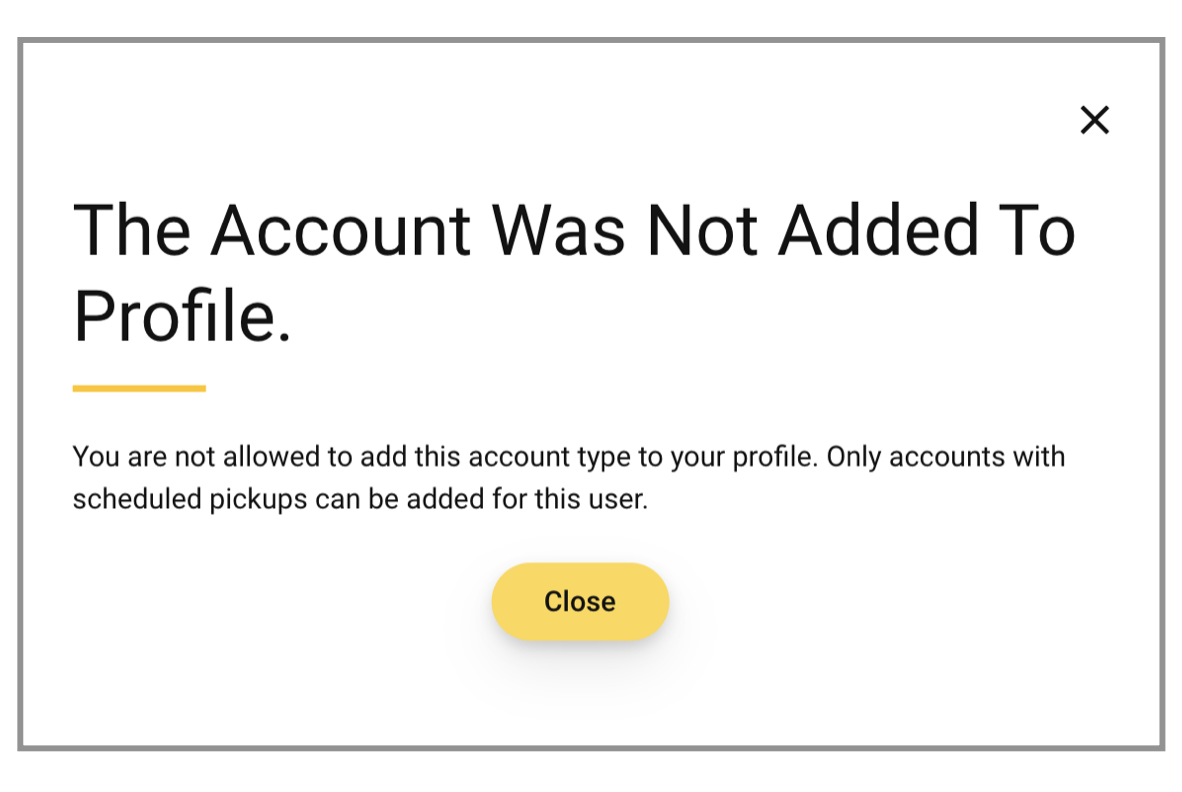
This message indicates that UPS is preventing the account from being associated with your shipping profile because of its account or pickup configuration.
Contact UPS Account Maintenance
Contact UPS customer support and request assistance from the UPS Account Maintenance department.
Explain that:
- You have an existing UPS account number.
- You need to associate the account number with your UPS.com shipping profile.
- UPS is preventing the association because the account does not have scheduled pickups.
- You need the account association to generate shipping labels through FreightDesk Online.
In a documented case, UPS Account Maintenance was unable to associate the account with the UPS shipping profile without first establishing a scheduled daily pickup.
As a workaround, UPS temporarily enabled daily pickups for the account. The following day, the account holder was able to associate the UPS account number with the UPS.com shipping profile.
Important: Scheduled daily pickups may incur additional UPS charges. Before authorizing this workaround, ask UPS whether an alternative method is available to associate your account without establishing a paid pickup schedule.
Step 4: Verify UPS Label Printing in FreightDesk Online
After successfully associating your UPS account number with your UPS.com shipping profile:
- Return to FreightDesk Online.
- Open the shipment you want to process.
- Retrieve the UPS shipping quotes.
- Select the appropriate UPS service.
- Attempt to generate and print the UPS shipping label.
In the documented case, UPS label printing began working immediately after the account number was successfully associated with the UPS.com shipping profile.
Step 5: Cancel the Temporary Daily Pickup (If Applicable)
If UPS required you to establish a daily pickup schedule solely to associate your account with your UPS.com shipping profile, you may be able to cancel the scheduled pickup after the association is complete.
In the documented case:
- The UPS account was temporarily placed on a daily pickup schedule.
- The account number was successfully associated with the UPS.com shipping profile the following day.
- UPS shipping labels could then be printed through FreightDesk Online.
- The daily pickup schedule was cancelled several days later.
- Label printing was tested again several days after cancellation and continued to work successfully.
Important: This result reflects one confirmed experience and does not guarantee that UPS will preserve the account association or label-printing capability after scheduled pickups are cancelled for every account. Confirm the consequences of cancellation with UPS and test label printing afterward.
Additional Information
A successful UPS connection test and the ability to retrieve UPS shipping quotes do not necessarily mean that the account is fully configured for shipping label generation.
If FreightDesk Online returns "Missing or invalid shipping number", verifying the association between your UPS account number and your UPS.com shipping profile is a useful troubleshooting step.
UPS controls account eligibility, shipping profile associations, and scheduled pickup requirements. If UPS prevents you from associating your account number with your shipping profile, contact UPS Account Maintenance for assistance.
If the UPS account is correctly associated with your shipping profile and label printing still fails, contact Eniture Technology support for additional troubleshooting.